 Outlook is a powerful sales and marketing tool that few know how to leverage properly.
Most small businesses overlook that their email client can initiate follow-up, generate repeat sales, attract client testimonials, and so on.
A humble software, Outlook, provides initial sales and marketing automation and functionality that’s enough for smaller businesses.
Caution: Some of what I recommend below wouldn’t be ideal for a high-volume resume business. You’ll need to look into alternative services, such as Infusionsoft or ActiveCampaign to handle most of what I’m about to mention.
When you’re looking for ways to boost customer relations while building your revenue, leveraging the most basic tools can get you there.
It’s important to note that the below strategies work for Outlook Desktop or 365, Gmail, and so on. Any email client that offers delay send, draft saves, and categories to your email is ideal for these strategies.
Here’s what you can do to get the most from common email software like Outlook:
1. Close More Clients with Delay Send Emails
Do you have a formal prospect and client follow-up system?
If you do, fantastic. You can skip this section.
If you don’t, I want to introduce you to a basic solution that can add thousands of dollars to your business each year.
You don’t need me to convince you that repeat sales are awesome.
Returning clients are more receptive to our fees and are easier to close.
This is why you should make repeat business a priority for your business.
But, maybe up until now, you’ve waited for repeat clients to reach out to you – instead of you reaching out to them.
Maybe you didn’t have the means of outreach needed to initiate repeat sales.
During the early years of my business, I utilized Outlook’s delay send feature for sending emails to clients later in the relationship. I made these steps part of my client closeout process.
The email series looked something like this:
- “Hey, How’s It Going So Far?” (check-in email sent after 30 days)
- “Anything Else I Can Help With?” (upsell email sent after 60 days)
- “Time For an Update” (one-year follow-up to initiate resume updates)
This is what I did …
I wrote draft emails for each of the above. I kept the content vague, so it could be used for multiple recipients.
Once I finished a client project, I set up and personalized each of the three emails in my Outlook. I used the delay send option, so Outlook was sending client check-in and reminders about resume updates on my behalf.
Not very sophisticated, yet effective nonetheless!
2. Give Your Fingers a Break
Repetition sucks the life out of anyone, so speeding up the task of email writing can save hours each week.
As writers, we painstakingly write, edit, and re-edit our responses to prospects and clients, which is unnecessary in most cases.
You can counter this by writing generic email responses and saving those as drafts. You can have saved drafts for:
- Sales & Marketing Purposes
- Affiliate Communications
- Project Management
For sales, I have saved content that I can copy/paste for those who email me about needing help with their resume. Something like this:
Hey there, Jim. Thanks for contacting me about your resume. Do you have time this afternoon to talk about the project in more depth? How about 2:00 CDT?
I also use saved drafts to boost my response to LinkedIn ProFinder (LIPF) requests and send finished works to clients.
For example, I’ve been testing different content for LIPF client requests in search of the content that converts the highest.
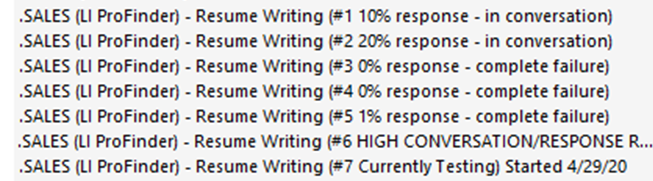
Outlook drafts give me quick “grab and go” content when I finish projects too. For example, here’s the content I use when sending a finished cover letter:
Jim – attached is the cover letter draft.
Let me know if there’s anything you’d like rewritten or tweaked.
At this point, I’ve completed your projects, unless you’d like me to work on and improve your LinkedIn profile.
Otherwise, touch base in a few weeks with an update on how your job search is going, okay?
I simply visit my DRAFTS folder in Outlook, find the “template” content I need, and copy/paste it into the current email I’m working on, add some personalization, and voila!
3. Prioritize Your Inbox Using Categories
Email can be a major burden.
There are several movements, including Inbox Zero, as a method of managing and eliminating what’s in your inbox more efficiently.
Few people know that Outlook offers customized columns that can help you sort and process email faster.
Below is a screenshot that shows just some of the ways you can take control of your inbox; e.g., categorize email by urgency and when projects are due.
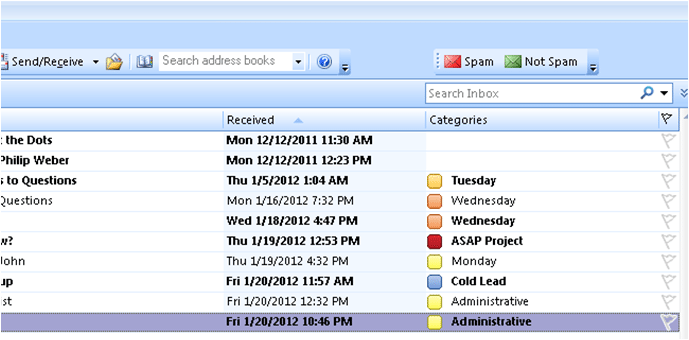
Notice in the above picture that there’s an ASAP project due, and it’s appropriately color-coded as red.
You can group categories together too, which is a huge bonus for those who are juggling 10-20 client projects at a time.
By using categories, you can tag and later identify emails needing immediate attention versus other less important stuff, like administrative emails that can wait a day or more.
Outlook offers an array of available columns that you can use in your favor, such as:
- Start Date
- Due Date
- Importance
Related Resource:
In-Depth Guide to Manage Your Time & Get More Things Done
4. Boost Follow-up Using Reminders
Pop-up reminders are fabulous!
I use Outlook reminders so I don’t forget about:
- Annual Membership Renewals
- Follow-up to Important Email Conversations
- Upcoming Speaking Engagements, Meetings & Lunch Dates
These reminders can be used to remind you and initiate follow-up with prospects, clients, affiliates, and so on.
The free Outlook (https://outlook.live.com) and Office 365 Outlook both offer the reminder functionality, enabling you to set up one-time or repeat (weekly, monthly, and yearly) reminders.
Reminders can help you with financial management, too, by reminding you of upcoming yearly renewal fees to the NRWA or your subscription to Grammarly.
