In this article, we’re focusing on how to setup, manage, and market your Facebook business page.
Despite recent changes, Facebook continues as a powerful tool for today’s resume businesses.
Facebook offers you organic marketing (e.g. pages, groups, and events) and paid advertising.
 You might think that Facebook is the wrong fit for your resume business.
I’ve talked to several resume writers who don’t believe Facebook is ideal for promoting a resume business.
But, I’m here to tell you that Facebook promotions are right for so many types of business in many different industries.
In later posts, we’ll cover groups, events, and paid advertising. For now, let’s focus on the setup, management, and marketing of a Facebook business page.
SETUP — FACEBOOK BUSINESS PAGE
With consistent effort, a Facebook business page can garner clicks and exposure for your resume business.
To improve conversions, you must know your ideal audience.
A business page is designed to attract clients.
Here are some step-by-step instructions from the Ranking Academy on how to set up a Facebook business page:
You’ll need a personal Facebook profile first, before creating a business page.
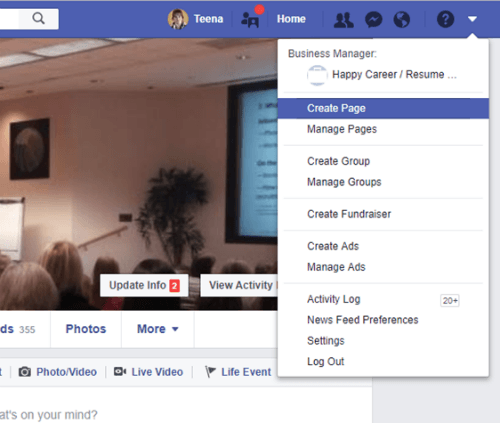
Once you have a Facebook profile, now click the downward arrow located at the top/right of your navigation bar.
Select Create Page.
Facebook will then ask you to pick a page name and category.
As of the time of this writing, Facebook offers two categories to choose from:
- Business/Brand
- Community/Public Figure
If you plan to promote services, select “business/brand” as your category.

Once your business page has been created, your first tasks should be to add a profile and cover photo.
This is the fun part!
For help designing your photos, give free tool, Canva.com, a try.
According to Facebook, ideal photo sizes are as follows:
- 170×170 pixels for profile pictures
- 820×312 pixels for cover photos
Once you’re finished with the design, it’s time to look at functionality.
You can add a call-to-action button to your Facebook business page.
To see button choices, click on “Add Page Button.”
The take-action buttons relevant to you include:
- Book appointment (via calendar)
- Make contact (send message/email, call)
- Learn more (about your services)
To edit the description of your Facebook business page, and add a link to your website, click on the “About” tab on the left of the page.
Once there, you can edit your page’s:
- Category
- Name
- Contact Info
- Description
- URL

A final step to setting up your business page is selecting a vanity URL.
If you avoid this step, your Facebook business page will have a long URL with all these numbers after it.
For example, your rough URL will look something like this:
https://www.facebook.com/pages/yourbusinessname/12345678901234
Instead of the above, you want something like this instead:
https://www.facebook.com/yourbusiness
To select your vanity URL, also referred to as username, is located under the About page.

Now that you’ve set up your Facebook business page, it’s now time to think about what you’re going to do with it.
PROMOTIONS — FACEBOOK BUSINESS PAGE
You might presume promoting your Facebook business page will be difficult.
It’s not. Here’s what we recommend:
First, begin promoting your blog content and free resources on your business page.
Free help and resources are the best-read content across social media accounts.
Since Facebook is a visual forum, use images and video to help attract likes and share.
Don’t have blog content and resources to share?
Get started by stocking your Facebook business page with positive quotes.
Positive quotes are well received too.
Here are 3 resources to find ideal positive quotes:
- https://addicted2success.com/quotes/50-positive-thinking-quotes-for-more-inner-strength-growth/
- https://www.success.com/article/13-quotes-for-a-positive-life
- https://www.forbes.com/sites/kevinkruse/2013/05/28/inspirational-quotes/#6c0b1bdf6c7a
DOWNLOAD: Here’s a .docx file with positive quotes too.
Second, add a Facebook follow button to your website.
A small word of caution. Your website must have a “quantity or quality” audience. Otherwise, your social media buttons won’t produce much.
Yet, adding a follow button only takes a few minutes and worth a shot.
WordPress has a few social media plugins to help you add follow buttons to your site:
Third, promote your Facebook business page in offline places too.
Here are a few places to get you started:
- Business cards
- Flyers
- Free workshops
- Networking events
- Print advertisements
- Letterhead
- Book acknowledgments
- Promo material (e.g. mugs, t-shirts, pens)
Think these are old school?
Think again.
Major companies use these “old-school” marketing tactics.
And, you should be too.
Fourth, tap your existing audience from fan pages over at Twitter or LinkedIn.
SocialMediaExaminer offers this bit of advice to attract your Twitter to your Facebook business page:
“… tweet something like, “Wanting more conversation than 140 characters will allow? Join us on Facebook at http://fb.me/ awesomefanpage.”
Fifth, add your Facebook business page URL to the header photo of your Twitter profile.
Sixth, share your business page content on your personal page.
Be careful with this feature.
Promoting business activities to your friends and family can have adverse effects.
Seventh, be sure your business page has a “face.”
People know, like, and trust other people. Not companies.
Facebook business pages that don’t have a people presence will grow much slower.
Eighth, look into video crossposting opportunities.
Make these arrangements with other business page owners. Or, share videos between your pages.
More Promotional Resources
To create a high-converting Facebook business page, check out these resources:
16 Elements of High-Converting Facebook Pages You Need to Copy
7 Ways to Promote Your Business Page For Free
Effective Facebook Marketing Strategies for 2017
MANAGEMENT — FACEBOOK BUSINESS PAGE
Social media is time-consuming. Save time by leveraging Buffer.com. With this tool, you can streamline the scheduling of social media updates.
Buffer.com is easy to use with an entry price of $10/mth.
In addition to setting up and using Buffer, post questions and comments within your business page.
Your business page can’t be a “set it and forget it” promotion.
You must be consistent and persistent with your actions to keep your business page in front of your audience.
Adding an Admin to Your Page
Adding an admin to your page will become a necessity as your resume business grows.
Setting up admin access is more secure than giving someone your master Facebook login.
Add an admin to your page by:
- Select Settings -> Page Roles -> Assign a New Page Role
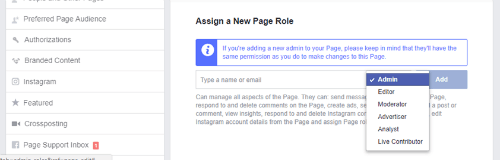
Notice how Facebook provides a warning about adding a new administrator.
- Editor
- Moderator
- Advertiser
- Analysis
- Live Contributor
To understand the differences between these roles, simply click on each select and read the description that populates underneath the field.
