Module 6 – Tools For LinkedIn Profile Writers
 Where would we be without our tools?
The number of LinkedIn tools available to us is growing.
Not surprisingly, many more are in development, making us feel like we’re navigating a deep, thick jungle of technology.
And we must tread carefully because LinkedIn frowns upon automated tools that slow down the site. That’s why we selectively use lightweight, unobtrusive tools. To learn more about computerized tools and LinkedIn, check out their terms of use.
At this point, you have questions.
Which tools are most suitable for us as writers? What tools should our clients use to improve their ROI from their job-search efforts?
None of us have the time to vet everything currently available or what’s about to launch.
Another big concern is that sometimes tools save us time; sometimes, they do not. And, making matters worse, they cost us money to learn, and we decide they’re a waste of time.
In this module, we’re highlighting 10 LinkedIn-compatible tools that we use, along with a couple of others that look promising, and so we include those as well.
These tools work well for job seekers and LinkedIn profile writers who write profiles for them. These tools generate helpful ideas about what to write about in LinkedIn profiles.
1. RECAP
In the last module, we covered a not-so-sexy topic: privacy settings.
Although LinkedIn offers users a much richer site experience, they’re also making the site much more complex for users.
The average person can spend hours reviewing the pros and implications of the growing list of privacy settings that LinkedIn currently offers.
To help your clients, we provided you with a done-for-you settings quick guide to cut that task by about two-thirds. We sifted through the staggering 75+ settings and boiled those down to what we believe are the most important 23 or so.
This way, you and your clients can optimize your privacy settings within a few minutes instead of getting trapped down a rabbit hole of settings decisions. 😉
2. TOOLS
The tools we’re covering in this module span 6 core areas:
- Content Development
- Marketing
- Grammar
- Sales
- Visual Appeal
- Data/Analytics
Are you using something exciting and want to share? If yes, email and tell us about it.
Let’s get started.
CONTENT DEVELOPMENT
1. WordTune.com
WordTune is a Chrome extension that helps you write better LinkedIn profiles, resumes, or anything else with words by suggesting alternate word choices to improve your writing.
In addition to the extension, they offer the Wordtune Editor at wordtune.com (login required) that works in place of the extension.
Whether you use the extension or the editor, this tool offers advanced capabilities to help writers with tone of voice, length, and structure.
Some of its more notable features include:
-
- Synonym Recommendations
- Whole Document Content Rewriting
- Expansion & Shortening Recommendation
The tool offers a free version with an inexpensive paid version for heavier users.
2. Jasper.ai
If you haven’t heard of Jasper (formerly Jarvis), you’ll wonder how you ever lived without it. Essentially, Jasper provides AI-provided content that can get leveraged in nearly every part of your writing business. Whether you’re writing LinkedIn profiles or working on a new piece of content for your website, Jasper has many templates, recipes, etc.
Some of Jasper’s interesting functions for client projects include the Content Improver, Creative Story, Sentence Expander, Personal Bio, and Unique Value Proposition (UVP). Each of these functions can help you broaden the uniqueness and scope of your content.
For LinkedIn profile writers to use in their businesses, the functions are much vaster.
For example, Jasper transforms content used for many different purposes. Some of the most popular are organic and paid social media (e.g., Facebook and Google), website content development, and creating email content and subject lines.
But there’s a catch to all of these functions. Many people are excitedly writing about Jasper, but it’s hard to find a comprehensive list of the content templates available with the app. So I took a deep dive into some favorite features and separated a list below.
Listed below is a compilation of only a portion of Jasper’s content types.
-
- Content Improver – A feature that helps writers create a new piece of content with a beginning, middle, and end.
- Personal Bio – Give a writer a template, and they can create a personalized bio for a client in just a few minutes.
- Unique Value Proposition (UVP) – Taking a look at a UVP, a writer can quickly research a topic and make a template for a given industry or job role.
- Sentence expander – The Sentence Expander allows a writer to place key points within a paragraph, and the result will be a concise message that’s easy for a reader to digest.
- Creative story – This function allows writers to create content templates for different purposes, such as industries or job roles.
All in all, this app is something anyone with a computer should have.
Jasper can alleviate some heavy lifting so you enjoy a more efficient writing process no matter where you are in your writing career.
MARKETING
3. Claro Job Seeking Sonar
Job Seeking Sonar™ is a Chrome extension intended for recruiters; however, it can also get leveraged to support a LinkedIn profile writer’s business development activities.
What does the service do precisely? The service essentially notifies you when someone you’re following starts a passive job search.
What’s cool about this service – something that people will appreciate? LinkedIn profile writers can get insights into prospects and clients they’re interested in monitoring on LinkedIn.
There’s a free and paid version of the service. Users could get a fair amount of use from the free version because it enables users to monitor up to 100 people. The paid version is $19.99 per month, and it unlocks job seeker search using job title, job function, company name, or job location.
GRAMMAR
4. Grammarly for Chrome
Grammarly has many helpful features you can leverage. It is a handy tool for any writer.
Grammarly offers an extension that checks every single sentence you type. For example, if you are writing a LinkedIn profile or an email to a client, the Grammarly extension prevents any mistakes in grammar and checks for spelling. This can be especially helpful because sometimes finding the correct word when typing fast can be challenging.
The other helpful feature of Grammarly is its plagiarism checker. This checker compared what you wrote against other published written copy. Since Grammarly has such a comprehensive search feature, this can prevent you from intentionally or unintentionally plagiarizing other people’s work.
Grammarly has many good things, and I could talk for hours about it, but this is just the basics to get you started. If you want to find out more or try it yourself, visit their website at www.grammarly.com.
Happy writing!
SALES
 5. Humantics.ai
Humantic.ai is a new and innovative global artificial intelligence (AI) technology company based in London, UK, focusing on developing personalized solutions for consumers and businesses.
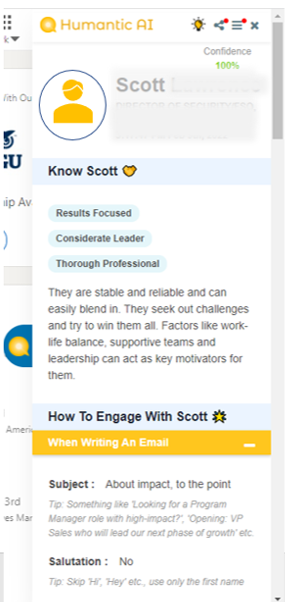
The company offers a Google Chrome extension that gives users insight into people behind profiles. The information this extension provides can be used to improve prospect/client communications and sales outcomes.
That’s pretty cool, right?
For example, the tool interprets profile content and provides recommendations on how to best engage with the individual.
The tool also includes best practices when writing emails, including optimal greetings, subject lines, and overall messaging. Additional insights outline how best to speak with the person by phone.
As you can imagine, the tool hugely benefits sales teams and marketers.
According to humantic.ai’s website, “With deep learning-based systems gaining traction in several industries, Humantics’ AI technology provides an efficient instrument that makes life easier for people who need information about others.”
If you close just one client using this extension, the annual investment will more than pay for itself.
More information about humantic.ai can be found on their website: www.humantic.ai.
VISUAL APPEAL/DESIGN
6. Canva
Canva provides a wealth of design ideas and templates for just about you’ll ever need, including LinkedIn banners.
Having several templates at our fingertips makes creating eye-catching and branded LinkedIn banners a breeze. We’re ready to upload an awesome banner to the client’s LinkedIn profile with a few quick clicks.
The site has a free service level, although the Pro version is an affordable $120 annually.
7. PowerPoint
Another software we use extensively for creating all kinds of graphics is PowerPoint.
You may not know about PowerPoint’s potential for design because it’s oftentimes overlooked.
Yet, creating designs from scratch using PowerPoint is super easy.
Use illustrations and icons from free or paid sources and layer those to add oomph to finished LinkedIn banners and save time.
PowerPoint enables you to change colors, add artistic effects, and incorporate image transparency to just about anything, e.g., text, pictures, icons, charts, etc.
If you’re an Office 365 user, you may have noticed the additional royalty-free icons and 3D model templates in PowerPoint. Super helpful when you want to add design to the profiles you create! Plus, using PowerPoint requires no additional cost if you’re a 365 subscriber.
ANALYTICS
8. Social Selling Index
LinkedIn offers the Social Selling Index tool, which is great for us as writers. The tool tells us how we compare to others within our industries and network. The data is a bit limited but does give us somewhat of a measuring stick for monitoring our profile’s progress through the eyes of LinkedIn.
Despite being a tool used primarily by businesses, it’s ideal for job-seeking clients.
Here’s a screenshot example of the SSI in action:
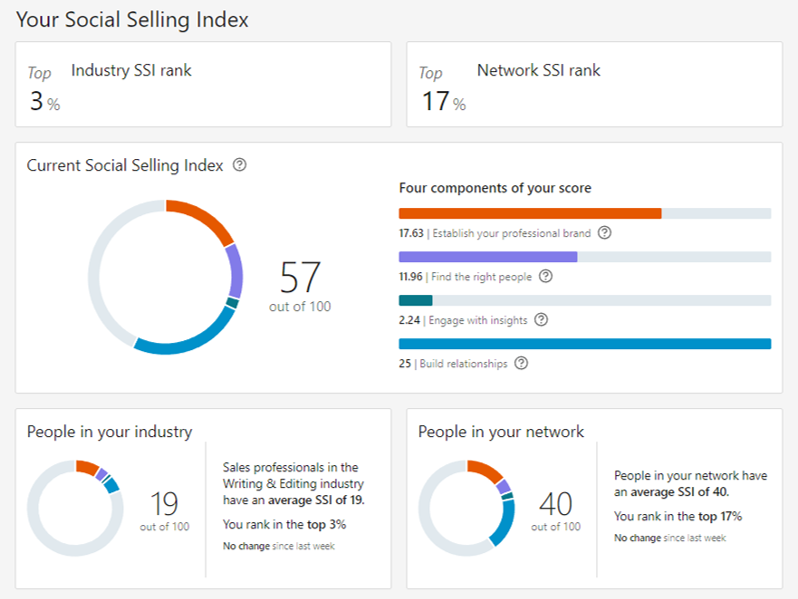
Our clients should use the SSI to measure how well they nurture their networks. For example, striving for a high ranking in the fourth component (Build Relationships) tells LinkedIn that the user leverages their profile for the purpose intended.
To access the SSI, log into your (or your client’s profile) and visit https://www.linkedin.com/sales/ssi.
This service retrieves the score of the LinkedIn user profile open in the same browser.
9. Lead Generation
In our previous module, we talked about how specific actions through LinkedIn can get an account restricted, which is why we saved LEAD GENERATION TOOLS for last.
Lead gen tools are the biggest culprits for getting your account restricted because they’re used to automate connection requests, scrape data, and launch communication (drip) campaigns to prospects and customers.
Deciding on the lead generation tool that you’re most comfortable using, and fits into your budget, will take research on your part. There are many options, including Crystal, Discover.ly, and InBoardPro. Yet, the list doesn’t stop there.
Additional tools include:
-
- Dux-Soup
- LinkedInHelper
- Expandi.io
- MeetAlfred
- LeadFuze
- Leadfeeder
Oh, and let’s not forget LinkedIn’s very own Sales Navigator, which is promoted as a B2B sales tool, though it works for B2C efforts as well. This is the lead gen tool that LinkedIn prefers you use.
No surprises there, right? 😉
Yet, the most significant caveat to Sales Navigator is its non-existent ability to automate communications. As you’re aware, we have only so much time in the day, and unfortunately, Sales Navigator requires human interaction for manual lead nurturing, management, and contact recordkeeping. Sales Navigator requires a heavy investment of time and money, which can be offputting.
3. NEXT MODULE
What’s better than tools?
Downloads, baby!
We’ll spoil you a bit more in the next module by providing you with some done-for-you LinkedIn goodies that you can use to be a reliable resource to your clients.
How cool is that!?!
If at any time you have questions, email us at [email protected].
Regards,
ResumeBIZ Team
